Networking Fundamentals: Understanding Network Devices (1/6)
You’ve been lied to!
Your router is not just a router
There are hidden miniature alien being inside it
Let me explain
You might have used the internet (or are you a mysterious alien from Andromeda who has gained the ability to access this webpage through some magic!)
But you might not understand how it works. How can a company come and install one weird looking box with blinking lights and antennas and suddenly you can talk to your uncle sitting in another continent!
In this series of blogs, I’ll take you on a journey through air to wires and at the end, you might just understand Why Internet is Magical and How sometimes a Shark might just try to upload some fresh data in the undersea cable network
The WiFi Box Enigma
The device your ISP installed does not serve a singular function, it actually entails a number of devices cramped into one functional unit.
Let’s break open this ISP-provided box and see what’s really inside.
Modem and ONT
Modem
Modem stands for Modulator/Demodulator. It converts analog signals from your ISP into digital signals and vice-versa.This ensures that both ends send and receive data they understand.
BUT most likely, in this modern world, you are using Fiber Internet. Fiber doesn’t use a modem rather an ONT.
ONT
ONT stands for Optical Network Terminal. It works similar to Modem, converting Light Media from Fiber Optic to Electrical Signals which your Ethernet cable carries
Conclusion: Modem and ONT are just bridge devices which convert media formats between two mediums.
Hub and Switch
Whether you are using Modem or ONT, you now have an Ethernet connection at this point. You very well can plug this Ethernet in your PC and get an IP from your ISP using their Authentication Method
But this method is not secure, we will get to it once we talk about Firewalls
Another concern with this type of setup would be expandability. You would have internet connection to just a single PC, no WiFi!
To overcome this concern, we need to plug this single connection into such a device which would take a single Input and give us Multiple Outputs.
Thankfully for us, God gave us Hubs and Switches!
Hub
Hubs are just multiport repeaters. They take traffic from the Uplink(or Input) and forward it to every other port on the hub. They operate at Layer 1 of OSI Model which is the lowest layer meaning they have no understanding of MAC addresses, IP addresses, or frames. They simply deal with raw electrical or optical signals on the wire.
The limitations with the Hub approach are quite obvious. Since Hubs effectively forward all traffic to all ports it results in collisions, congestion and slow speeds.
To mitigate these limitations, Switch came into picture.
Switch
Switches operate at OSI Layer 2 (the Data Link layer) and serve a similar role to hubs: they connect multiple devices within the same local network. However, unlike hubs, switches are intelligent forwarding devices.
A switch learns the MAC addresses of connected devices and sends frames only to the port where the destination device resides. This prevents unnecessary traffic flooding, reduces collisions, and makes modern Ethernet networks far more efficient.
Internally, switches operate using a CAM table
CAM table basically tells which MAC address is reachable through which physical port
How does a Switch learn all that?
From the CCNA study material. Just kidding, it is a multi-stage process but before learning this process, we need to clarify what a frame is. At this stage for us, we can think of frames to an equivalent of packets on layer 2 whereas a packet is a layer 3 construct. Here is a good explanation by a kind reddit user.
Now onto the CAM table creation process:
- MAC Learning
- A frame enters Port n on the switch
- Switch takes a note of the Source MAC Address and associates it with the Port n
- Forwarding
- Switch checks the Destination MAC Address on the frame
- Unknown Unicast Flooding
- If the switch doesn’t have an entry for the Destination MAC Address, it floods the frame out all ports (except the incoming one)
- Once the correct destination receives the frame, it replies an acknowledgement to the Switch
- This Ack is then recorded as the MAC Address for the destination port
- Unicast Forwarding
- If the switch already has an entry for the Destination MAC Address, it forwards the frame to the port known in the CAM table
- Table Aging
- Since destination devices might be changed after sometimes, this CAM table is not permanent
- Every entry has an associated Last Seen time
- Once a device hasn’t been contacted till a certain time (typically 300 seconds), it’s entry is deleted from the CAM table
Role in a modern consumer router
Why did we learn all this about Switch and Hub?
Because your Home Router comes with one! The Ethernet Ports on your router are just in-built switch in that router. You can also install a separate ONT+Switch combo to make your own router+firewall combo just like I do at my homelab! More about that later.
Router
Router is what routes the traffic! [insert Mind Blown GIF here]
Okay, let’s get a bit more technical.
A router is a Layer 3 device that forwards IP packets between networks based on:
- Destination IP address
- Routing table lookup
- Next-hop resolution
- Encapsulation rewrite
For begineers, a router can be thought of as a logical program which takes decisions for the packets (packets since we are at Layer 3 now) path hop-by-hop
Firewall
A firewall is the security checkpoint of a network. Its job is to decide what traffic is allowed to enter or leave your network, and what should be blocked.
Typically in a home network, firewall doesn’t allow any incoming traffic but allows all outgoing traffic.
Typical Inward Flow
If you want to, let’s say, run a web server on your PC and want it accessible to the web, you’ll need to configure your firewall to:
- Allow incoming traffic at certain port (80 and 443 for HTTP and HTTPS by standard)
- Specify which protocol would be allowed (most likely TCP)
- Specify MAC Address of Destination PC
Doing this is not recommended unless you know what you are doing.
Why Security lives here?
Firewall ensures the security of a network by checking every packet against the set of rules specified to it.
If a packet fails, it’s dropped. Otherwise, it’s forwarded to the router.
This filtering of traffic based on a rules-outcome scenario is why security lives at the Firewall.
Access Points
The antennas on your home router are actually part of the wireless access point component inside the device. An access point is responsible for providing Wi-Fi.
It simply acts as a bridge between wireless clients (phones, laptops) and your wired local network.
Load Balancer
Load Balancer (often abbreviated to LB) is a device or service that sits in front of multiple servers and distributes incoming traffic across them.
This ensures an optimal flow of traffic to the whole cluster of servers WHILE STILL being seen as a single unit to the outer Internet
LBs operate at both Layer 4 and Layer 7.
Traefik is a popular Load Balancer which works primarily at Layer 7 but also has limited Layer 4 capabilities. This is the LB I use in my homelab!
To read more about L4 vs L7 LBs, read this blog by HAProxy
Real World Setup
So now that we know of these devices, let’s try and break open your router!
Let me visualize a router where every component is separately represented
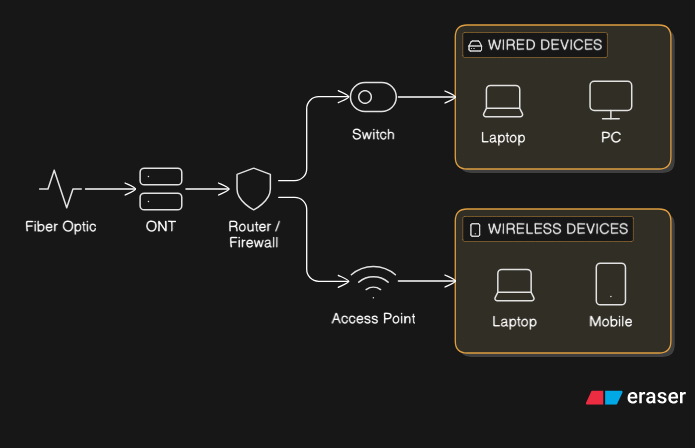 Home Router Visualized
Conclusion
With the knowledge we gained from this blog, we can now build on top and get a better understanding of TCP, UDP and DNS.
Maybe a bit of CURL action too, who knows!